Annotate PDFs with Rectangles/Screenshots
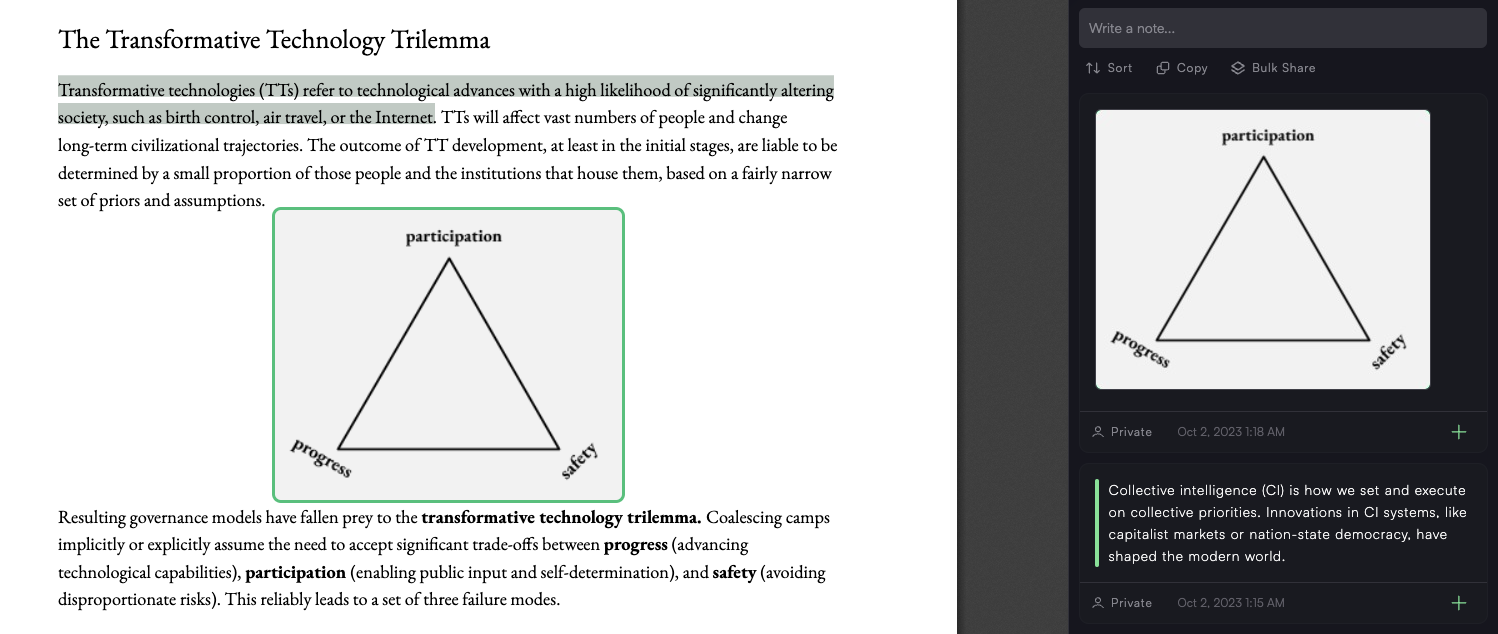
If you ever struggled to annotate illustrations and graphs in PDFs, now you can do that with Memex.
Use the "Draw Rectangle" button in the top bar of the annotation reader, or the keyboard hotkey for highlights or "annotations" respectively without having text selected.
Tips:
Keep the Space bar pressed to move the rectangle while keeping the dimensions intact.
Scroll somewhere else and then click on the image it'll scroll back to the place.
Works with PDFs you get via URLs and local PDFs. You can start annotating online and continue offline. It'll identify it as the same PDF.
Check out our new Obsidian and Logseq live sync. It'll sync and update pages and annotations you save with Memex. If you organise things with Spaces, they are automatically exported as Wikilinks so they'll embed nicely with your existing graph structure.
We also have other ways to export stuff, like the copy/paste templates.
This is our first version of the screenshot annotations, so if you find any bugs or feature requests let us know that'd be super helpful. We're in product polishing mode right now so chances are good they'll be fixed swiftly.